1. Home
  2. Features

Every feature of the RapidEx Track expense tracker

A simple expense tracker should still do the whole job. Here is everything the app does, screen by screen.

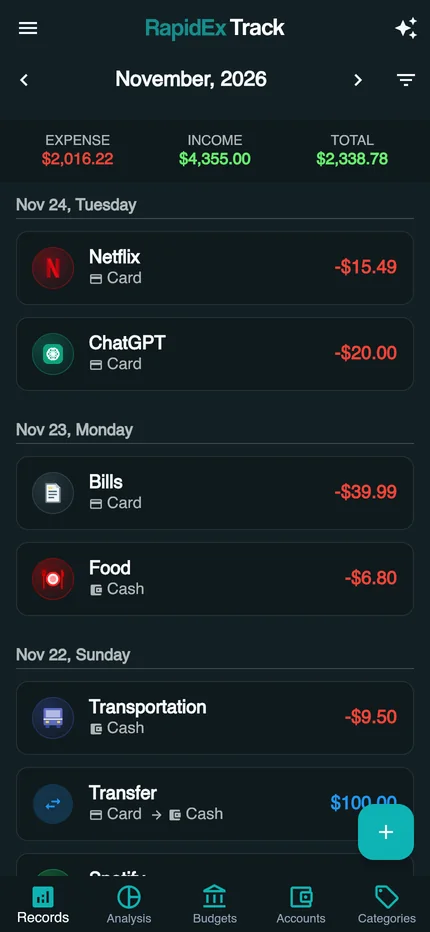
Records

Every expense, income and transfer in one list, for any period you choose.

  • Three record types: expense, income, and transfer between two of your accounts.
  • What a record holds: amount, account, category, date, time and an optional note.
  • Three ways to view for free: daily, weekly or monthly, with arrows to step to the previous or next period. Premium adds 3 months, 6 months and yearly.
  • Totals on top: expense, income and total for the period you are looking at.
  • Grouped by day, newest first, with expenses in red, income in green and transfers in blue.
  • Tap any record to see its details, then edit or delete it. An expense can be changed to income and back.
Quick add

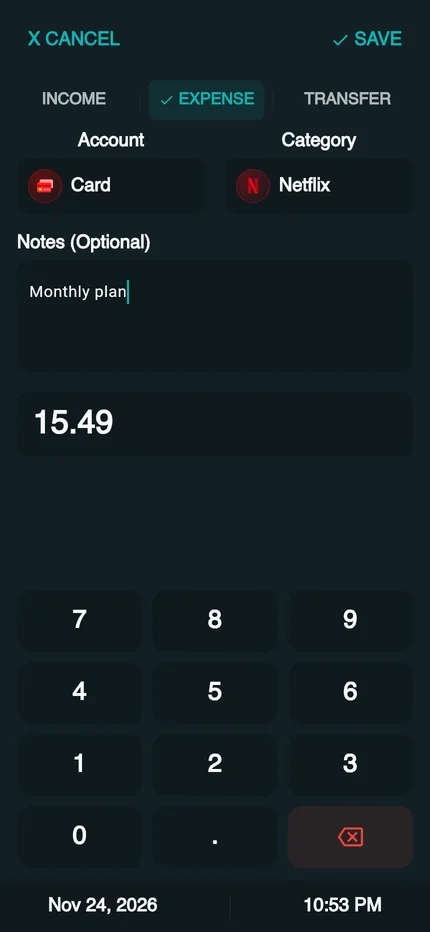
The + button is on every main screen, so adding a record takes a few seconds.

  • One screen: switch between income, expense and transfer with the tabs at the top.
  • Big number keypad with thousands separators as you type and two decimal places.
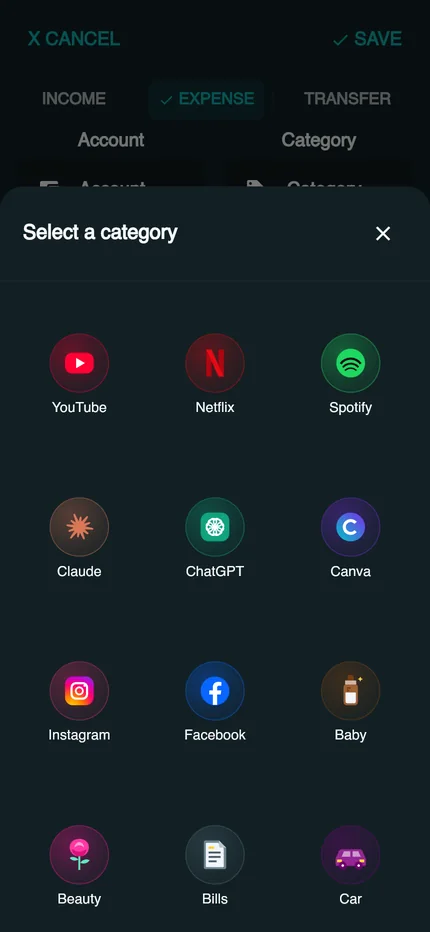
  • Account and category pickers slide up from the bottom. You can add a new account right from the picker.
  • Date and time default to now and can be changed for records you add later.
  • Notes are optional, for the details you want to remember.

Analysis Premium

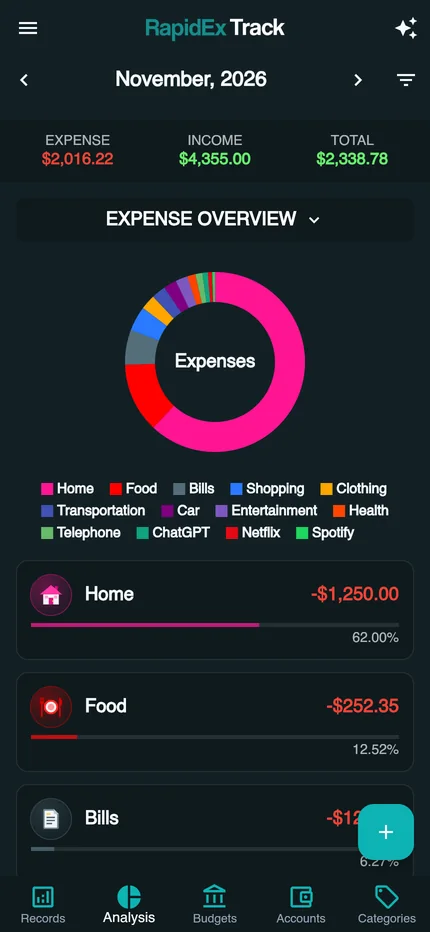
A clear chart of your expenses, so you can see what takes the biggest share.

  • Expense overview: a donut chart of your expenses by category, with a legend and a list sorted from the highest.
  • Account analysis: the same view by account, to see where the money left from.
  • Amount and percentage for every category or account.
  • Any period: all six views, from a single day to a full year.
  • Part of RapidEx Premium. On the free plan the Analysis tab explains what it does and how to unlock it.

Budgets

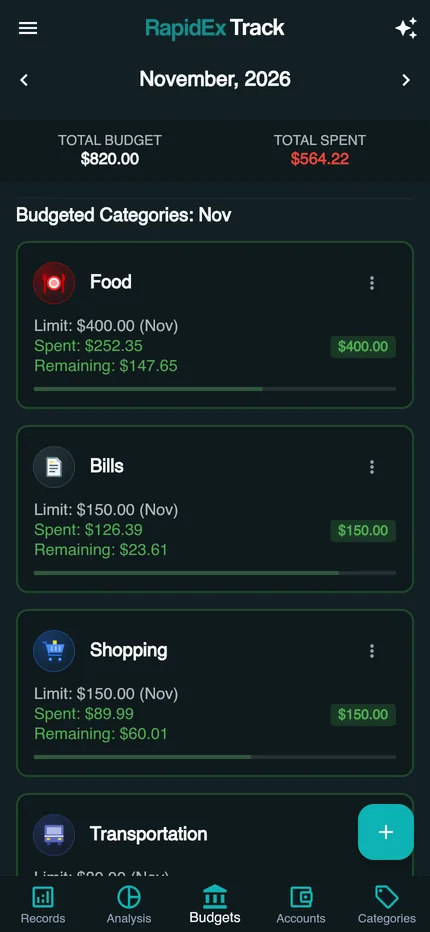
A monthly limit for each expense category, and a clear view of how you are doing.

  • One budget per category per month. Set it in a few taps and change it whenever you need to.
  • Limit, spent and remaining for every budget, with a progress bar.
  • "Limit exceeded" shows on a budget as soon as its category goes over.
  • Total budget and total spent for the month at the top of the screen.
  • Not budgeted this month: the categories without a budget are listed underneath, ready to set.
  • Move between months to plan ahead or look back.

Accounts

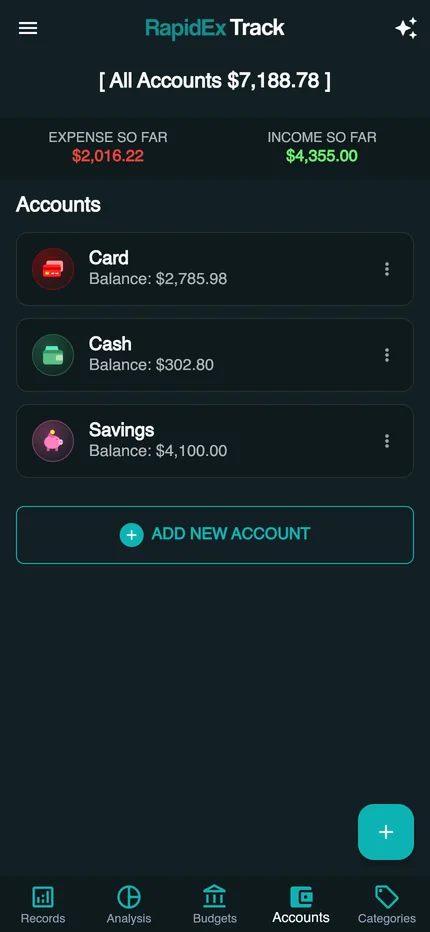
Separate balances for cash, cards, savings, or anything else you keep money in.

  • Ready to go: Card, Cash and Savings are created for you.
  • Add your own with a name, one of 10 illustrated icons, a colour and an opening balance.
  • Balances are calculated, not typed in: the opening balance plus the account's records. Editing or deleting a record can never leave a balance out of date.
  • Transfers move money between accounts without counting as income or expense.
  • All accounts total on top, with your expense and income so far.

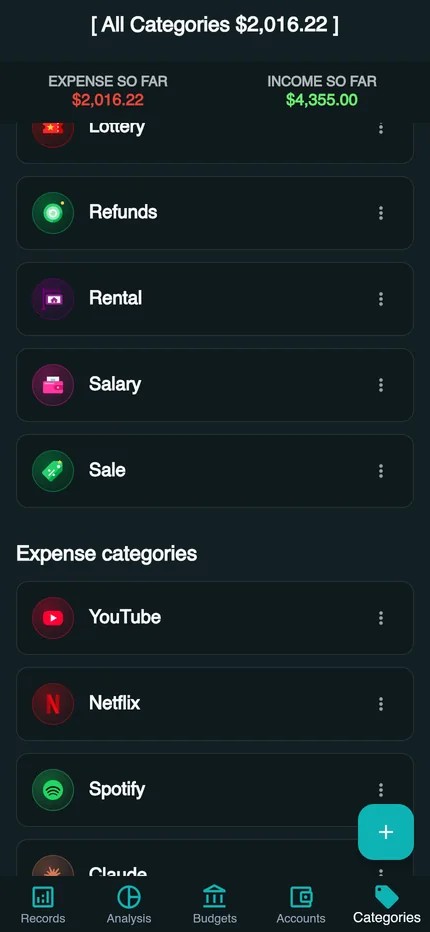
Categories

34 categories to start with, and as many of your own as you need.

26 expense categories

  • YouTube
  • Netflix
  • Spotify
  • Claude
  • ChatGPT
  • Canva
  • Instagram
  • Facebook
  • Baby
  • Beauty
  • Bills
  • Car
  • Clothing
  • Education
  • Electronics
  • Entertainment
  • Food
  • Health
  • Home
  • Insurance
  • Shopping
  • Social
  • Sport
  • Tax
  • Telephone
  • Transportation

8 income categories

  • Awards
  • Coupons
  • Grants
  • Lottery
  • Refunds
  • Rental
  • Salary
  • Sale

Make them yours

  • Add, rename or delete any category, for income or for expenses.
  • 57 illustrated icons and 12 colours to choose from.
  • Apps and subscriptions built in: YouTube, Netflix, Spotify, Claude, ChatGPT, Canva, Instagram and Facebook come with their own logos.

Currencies

Use the app in your own currency.

  • 90 currencies in a searchable list, from the US dollar, euro and pound to the rupee, dirham, riyal and many more.
  • Choose it when you start, and change it any time from the menu.
  • Display only: the currency changes how amounts are shown. Existing amounts are not converted.

Themes

Dark or light, whichever you prefer.

  • Dark is the default: easy on the eyes, day or night.
  • Light: a clean and bright interface, one tap away in Account & Settings.

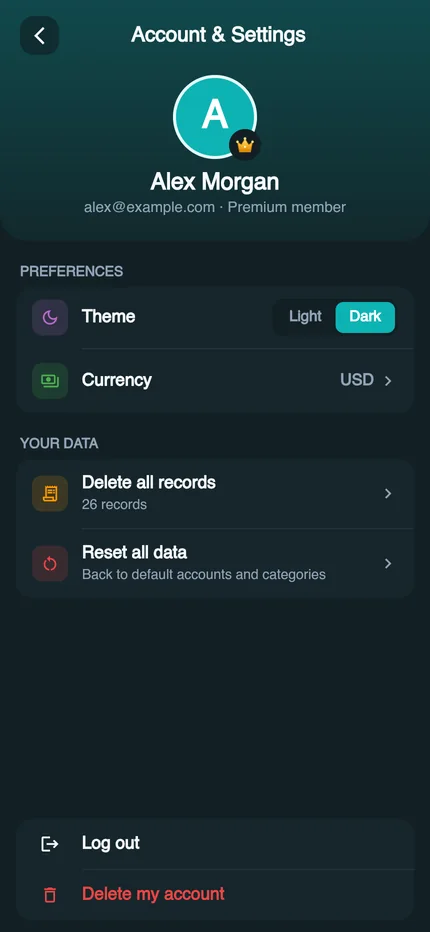
Account and settings

Your records are saved to your account and stay under your control.

  • Sign up with email and a password, or continue with Google.
  • Forgot your password? We email you a 6-digit code. Type it in the app and choose a new password.
  • Another phone: sign in and your records, accounts, categories and budgets are there.
  • One settings screen: your name, theme, currency, sign-in methods, your data and your account are all in Account & Settings.
  • Two ways in: add a password to an account made with Google, or connect Google to an email account.
  • Start over when you want to: delete all records, reset everything to the defaults, or delete your account completely.

Good to know: RapidEx Track saves every change to your account straight away, so it needs an internet connection. It does not connect to your bank; you add your records yourself.

AI assistant

Part of RapidEx Premium.

  • Ask in plain words and get answers based on your own records, accounts and budgets.
  • Monthly summaries, budget check-ins and saving tips without building a report.
How the AI assistant works

Try it with your own numbers

RapidEx Track is free on Google Play. Record a week of spending and see how your budgets hold up.